




 Click to Call us at: 1800 1020 418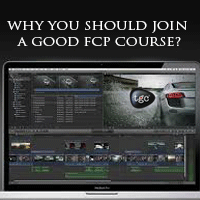
welcome
Video editing improves the quality of a video by removing all the unnecessary elements. An edited video is enjoyable to watch as it flows smoothly and includes only the necessary shots. It also saves viewers time. To gain skillsets in the field of video editing you should join a good FCP course. This article discusses, in brief, the software used for video editing (FCP). It also highlights the factors you should keep in mind while selecting a good FCP course. It further highlights FCP’s career prospects.
Final Cut Pro (FCP) is used for non-linear video editing. In non-linear video editing, the frames in a particular video clip can be easily accessed, cut & pasted and edited irrespective of the sequence in which they occur in the video clip. Thus non-linear video editing is as flexible as editing a word document. Since editing can be done frame by frame better effects can be incorporated in the clip. Final Cut Pro X, the latest version of the software has been developed by Apple. It has gained immense popularity and is used by many editors and filmmakers for non-linear video editing. You can master this software by pursuing a good FCP course.
Prerequisites to join an FCP course
The entry conditions for joining the FCP course differ from institute to institute. Some institutes demand basic knowledge of the Apple’s Macintosh(MAC) operating system whereas some others prefer candidates who have experience in similar fields like arts, media etc. The courses run for an approximate period of 15 days to 2 months based on whether you opt for a complete course or a fast-track course.
How to select the right FCP training institute
A good institute has experienced faculty who have worked with reputed firms and production houses. They use a case-study based teaching method to train the students. A good FCP course should first build your fundamentals and then take up other concepts. It should offer training on the latest versions of FCP.
A good FCP course focuses on hands-on training and practical exposure. They conduct a number of studio sessions along with classroom sessions. The studio sessions help the students understand the fine aspects of video editing through practical examples. Students also understand ways to put their creativity to best use.
The prime focus of a good course is to not just to make you an FCP software expert but to help fine-tune your aesthetical editing skills as well. Some institutes have corporate tie-ups and offer placement. Choose an institute which focuses on these aspects and makes you an all-round FCP video editor.
FCP Pro X is very popular in the media and film industry. Many freelance professionals and designers around the world use it to build quality edited videos. FCP is a name synonymous with non-linear editing these days. To build specialized skillets in this software application you should join a professional FCP course. It can help you get started with video editing and you can build your career in it.
TGC India is a known institute which offers a course in Final cut Pro for last 10 years, One can find TGC alumni working with reputed TV channels like Times Now, NDTV, Network 18, Aajtak, StarTV, India News etc. apart from TCV channels, TGC has also produced students for Films. International students mainly from Africa, Afghanistan come to TGC for learning video editing techniques on FCP and Adobe After Effects. TGC also conducts free trial classes for the newcomers and interested ones.

0 Responses on Why you should join a good FCP course?"